CUDA
CUDA stands for Compute Unified Device Architecture. It is a tool made by NVIDIA that lets computer programmers use NVIDIA's graphics cards to do calculations. Normally, graphics cards are used to process images and videos, but with CUDA, they can be used for all sorts of calculations including calculations for Machine Learning.
It is a parallel computing platform and application programming interface (API) model created by NVIDIA. In other words, it works like a translator. It takes the instructions written by programmers and translates them into a language that the graphics card can understand. This allows the graphics card to do many calculations at the same time, which can make programs run faster.
In CUDA, the instructions for the graphics card are written in small pieces called kernels. Each kernel is like a mini-program that can be run many times at once on the graphics card. This is how CUDA makes programs run faster: by doing many things at once.
The purpose of this note is not for CUDA technology itself. My personal interest is just to use the graphics card in my laptop with CUDA framework from Python. So most of the contents are mainly for software setup process to make the graphic Card to work with Python in CUDA framework.
- Get CUDA Compatible Graphics Card
- Software Pre-Requisits
- Get CUDA Toolkit Ready
- Get Anaconda Ready
- Install pycuda with Anaconda
- Graphics Card Detection Check
- CUDA Operation Check
Get CUDA Compatible Graphics Card
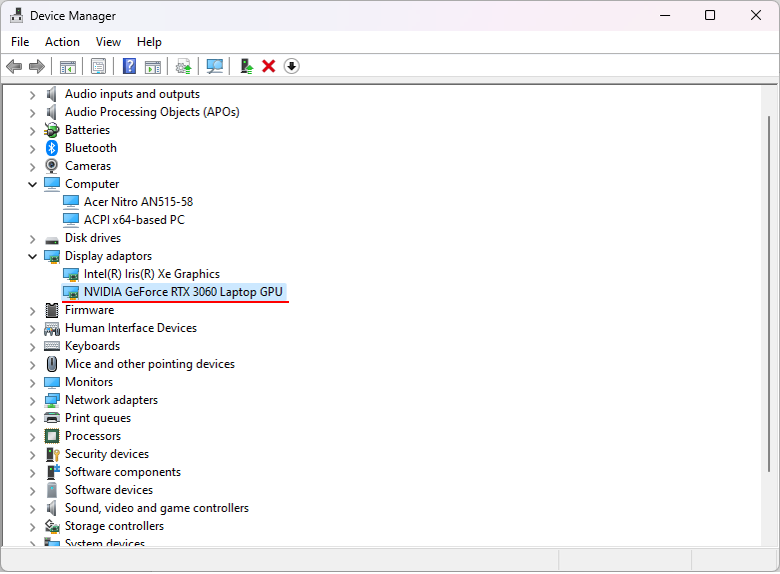
Before I purchase my new laptop and I wanted to have it with a graphics card that has CUDA compatibility. So the first step was to search on what kind of laptop graphics card are CUDA compatible. In May 2023, I first checked with Bing Chat and asked to give me a list of laptop Graphics card that are CUDA compatible. It gave me a short list of the graphics card that lead me to the site : https://developer.nvidia.com/cuda-gpus which provides official information from NVIDIA.
Finally the laptop that I decided to buy is the one that has the graphics card as shown below.
Even if you have CUDA compatible hardware, it doesn't mean that you can use it right away. You need a set of software component that are required to make the hardware work. In short, there are two major software component as follows :
- C compiler (cl.exe in Windows, gcc in Linux or Mac OS)
- CUDA compiler (nvcc)
Sound simple ? It just SOUND simple, but I think most part of the CUDA setup problem you would encounter may be related to these two components.
When you get these software ready on your PC, there are also a few things you need to make it sure as follows.
- Software (Complilers) and all the necessary dependencies are properly installed.
- The directories (location) of those compliers (both cl and nvcc) are added to the system variable Path
- A system variable CUDA_PATH should be created as a system varible and the path for nvcc should be assigned to the variable
The first item can easily be done. Just download the necessary package and install it, but many of the problem is related to 2nd or 3rd items. Ideally just installing the software should do the 2nd and 3rd automatically, but in many cases it doesn't seem to be the case.
The simplest way to check if the compilers are installed and the path for the compilers are properly set is as follows :
- Run Windows command line tool
- Run following commands in the directory outside of the compiler directory (e.g, C:\). If these command does not show you error message, it is highly likely that the compiler and the required path are properly setup.
- cl -help
- nvcc --help
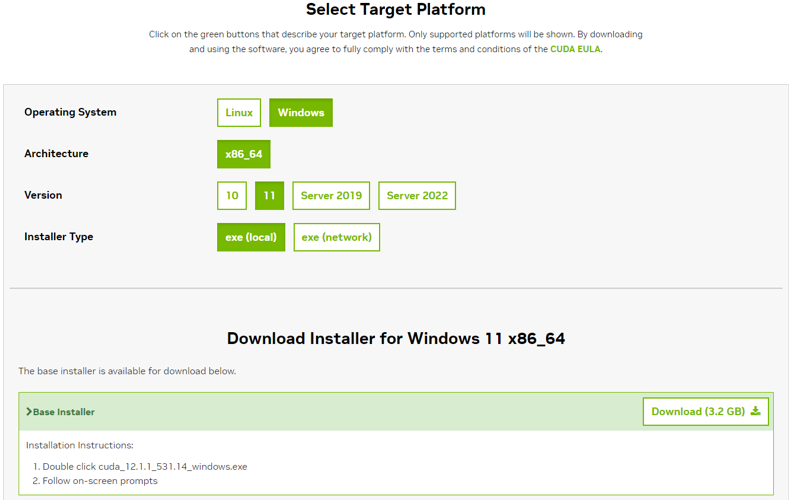
Download CUDA Toolkit from https://developer.nvidia.com/cuda-downloads
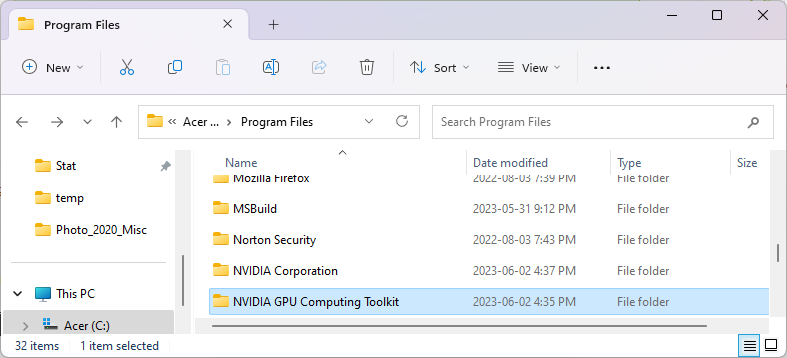
C:\Program Files\NVIDIA GPU Computing Toolkit\CUDA\v12.1\bin
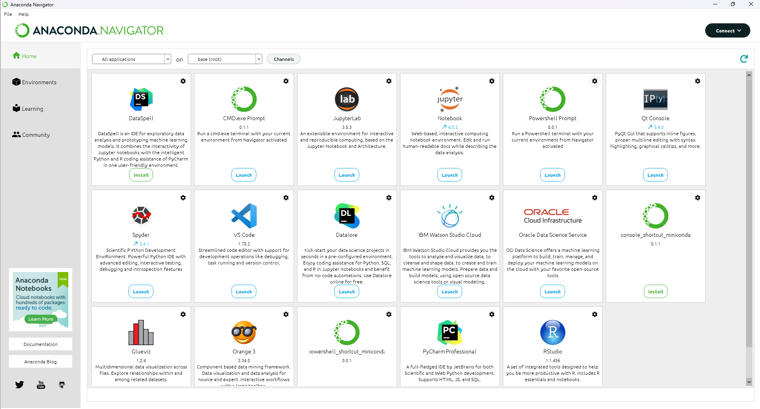
https://www.anaconda.com/download
|
$> C:\ProgramData\anaconda3\Scripts\conda install -c conda-forge pycuda |
|
$> C:\ProgramData\anaconda3\Scripts\conda install -c conda-forge pycuda Collecting package metadata (current_repodata.json): done Solving environment: done
==> WARNING: A newer version of conda exists. <== current version: 23.3.1 latest version: 23.5.0
Please update conda by running
$ conda update -n base -c defaults conda
Or to minimize the number of packages updated during conda update use
conda install conda=23.5.0
## Package Plan ##
environment location: C:\ProgramData\anaconda3
added / updated specs: - pycuda
The following NEW packages will be INSTALLED:
boost conda-forge/win-64::boost-1.78.0-py310h220cb41_4 boost-cpp conda-forge/win-64::boost-cpp-1.78.0-h5b4e17d_0 cudatoolkit conda-forge/win-64::cudatoolkit-11.8.0-h09e9e62_11 mako conda-forge/noarch::mako-1.2.4-pyhd8ed1ab_0 pycuda conda-forge/win-64::pycuda-2022.2.2-py310ha2c4f5d_0 python_abi conda-forge/win-64::python_abi-3.10-2_cp310 pytools conda-forge/noarch::pytools-2022.1.14-pyhd8ed1ab_0 ucrt conda-forge/win-64::ucrt-10.0.22621.0-h57928b3_0 vc14_runtime conda-forge/win-64::vc14_runtime-14.34.31931-h5081d32_16
The following packages will be UPDATED:
ca-certificates pkgs/main::ca-certificates-2023.01.10~ --> conda-forge::ca-certificates-2023.5.7-h56e8100_0 certifi pkgs/main/win-64::certifi-2022.12.7-p~ --> conda-forge/noarch::certifi-2023.5.7-pyhd8ed1ab_0 openssl pkgs/main::openssl-1.1.1t-h2bbff1b_0 --> conda-forge::openssl-1.1.1u-hcfcfb64_0 vs2015_runtime pkgs/main::vs2015_runtime-14.27.29016~ --> conda-forge::vs2015_runtime-14.34.31931-hed1258a_16
Proceed ([y]/n)? y
Downloading and Extracting Packages
Preparing transaction: done Verifying transaction: done Executing transaction: | "By downloading and using the CUDA Toolkit conda packages, you accept the terms and conditions of the CUDA End User License Agreement (EULA): https://docs.nvidia.com/cuda/eula/index.html"
done |
|
Cuda_test_01.py |
|
import pycuda.driver as cuda
def check_cuda_compatibility(): cuda.init() device_count = cuda.Device.count()
if device_count == 0: print("No CUDA compatible device detected.") else: print(f"{device_count} CUDA compatible device(s) detected.") for i in range(device_count): device = cuda.Device(i) print(f"Device #{i + 1}: {device.name()}")
check_cuda_compatibility() |
|
Result |
|
1 CUDA compatible device(s) detected. Device #1: NVIDIA GeForce RTX 3060 Laptop GPU |
|
Cuda_test_02.py |
|
import pycuda.autoinit import pycuda.driver as cuda import pycuda.compiler import numpy
device = cuda.Device(0) # Replace 0 with the ID of your GPU if you have more than one print(device.get_attributes()[cuda.device_attribute.MAX_THREADS_PER_BLOCK])
# Create a numpy array of 10000 elements, initialized to 1 a = numpy.ones(10000).astype(numpy.float32)
# Allocate memory on the GPU a_gpu = cuda.mem_alloc(a.size * a.dtype.itemsize)
# Copy the numpy array to the GPU cuda.memcpy_htod(a_gpu, a)
# Create a CUDA function (also known as a "kernel") that multiplies each element by 2 mod = pycuda.compiler.SourceModule(""" __global__ void multiply_by_2(float *a) { int idx = threadIdx.x; if (idx < 10000) { a[idx] *= 2; } } """)
# Get the function from the module func = mod.get_function("multiply_by_2")
# Call the function on the GPU func(a_gpu, block=(256,1,1), grid=(40,1))
# Copy the result back to the CPU a_doubled = numpy.empty_like(a) cuda.memcpy_dtoh(a_doubled, a_gpu)
# Print the result print(a_doubled) |
|
Result |
|
1024 [2. 2. 2. ... 1. 1. 1.] |